
Loud Volume Booster
TAMobMusic & Audio
4.41.50K Reviews
- Version
- 36
- Installs
- 500.00K
- Age Rating
- Everyone
Screenshots

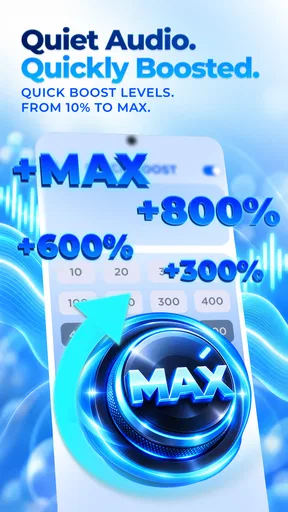
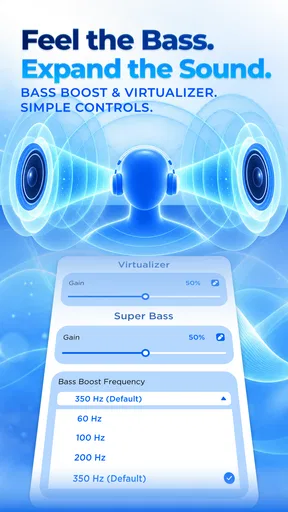
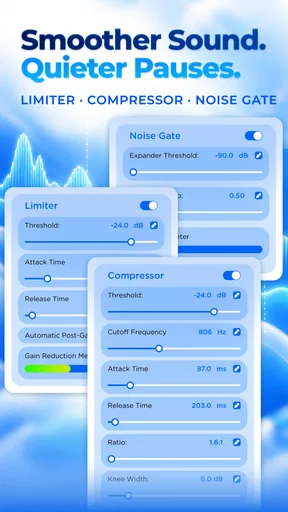
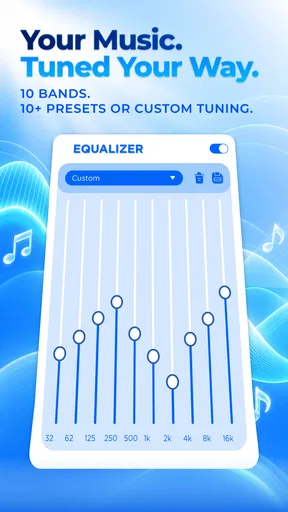
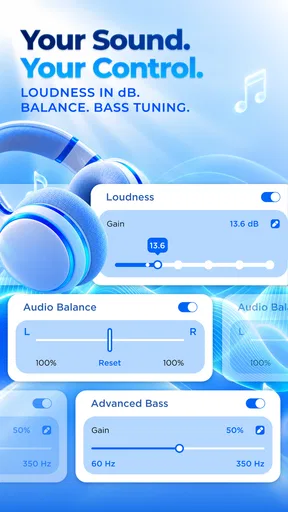
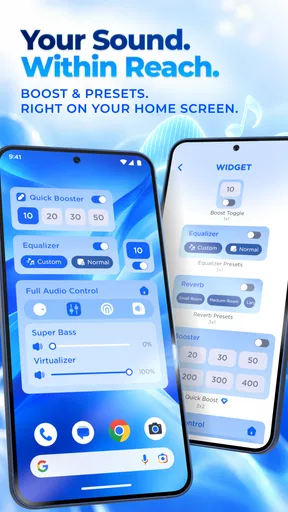
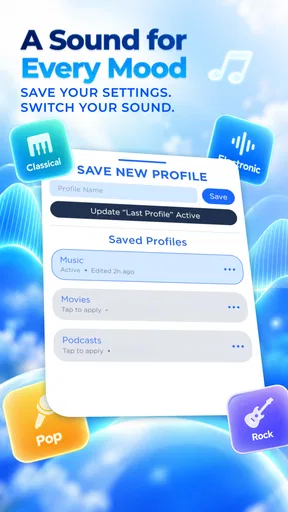
Our Review of Loud Volume Booster
 Analysis by Appyee
I tried Loud Volume Booster as a straightforward way to make phone audio feel stronger, and my first impression was that it is aimed at people who want an immediate adjustment rather than a complicated music-production tool. Developed by TAMob, this free Music & Audio app combines volume boosting with an equalizer, reverb, bass adjustment, and volume profiles. That combination makes it more flexible than a simple system-volume shortcut, although it also means that getting a pleasant result depends on how carefully you use the controls.
The app is available to Everyone and supports Android 7.0 or later. It has reached over 500 thousand installs, with a 4.4 average from around 16 thousand ratings and roughly 1.5 thousand written reviews. Those figures suggest that it has found a clear audience among Android users who want more control over everyday listening. I would describe it as a practical utility for speakers, headphones, podcasts, videos, and casual music—not as a replacement for a full audio workstation.
What to expect before you start
The main idea is easy to understand: the phone’s normal volume controls may not always give enough presence, so the app provides another layer of adjustment. In addition to making sound louder, it lets you shape the character of that sound. Bass can add weight, an equalizer can alter tonal balance, reverb can create a more spacious impression, and volume profiles can help you keep preferred settings ready for different situations.
That last point is more useful than it first sounds. A setting that works for quiet spoken audio may be unpleasant for music, while a bass-heavy adjustment that feels enjoyable through headphones can make a small phone speaker sound muddy. Instead of treating “louder” as the only goal, I found it better to think of the app as a quick listening-control panel. The strongest result usually comes from a moderate boost combined with a small tonal correction.
There is an important trade-off here. Increasing output beyond the phone’s usual level cannot magically create detail that was never present in the recording. If a podcast is poorly recorded, boosting it may make background hiss more obvious. If a song already has aggressive bass, adding more can blur vocals. I would therefore use the app to solve a specific listening problem, not leave every effect pushed to its maximum.
The current version is 36, and the app remains free to install. In-app purchases are listed at $12.99 per item, so I would check the available options inside the app before assuming every control or convenience is included without payment. The basic appeal is still clear even with that consideration: it offers a focused way to experiment with loudness and tone without replacing the phone’s entire audio system.
Who will notice the benefit first?
I think the best match is someone who regularly watches videos in a room with mild background noise, listens to spoken content through modest headphones, or feels that the phone speaker lacks impact at its normal ceiling. It can also suit people who switch between different kinds of audio and do not want to adjust the same controls from scratch each time.
It is less suitable for someone who expects studio-grade equalization, automatic correction for every headset, or a guaranteed improvement with every recording. Audiophiles who already use a carefully tuned external player may prefer to keep all processing in that player. Likewise, if your phone already sounds clean and loud enough, adding another audio layer may create more fiddling than value.
Setting it up without making the sound worse
My advice for a first launch is to begin with everything at a restrained level. Play a familiar track or a short spoken clip, then adjust one control at a time. Starting with the loudness adjustment makes sense, but I would stop as soon as the audio becomes comfortably audible. After that, use the equalizer only to address a clear problem, such as thin voices or a lack of warmth.
This one-at-a-time method is especially important because several changes can hide each other. A bass increase may make music seem louder even when the overall level has not changed much. Reverb can make a recording feel bigger, but it can also reduce the sense that a voice is close and clear. If I changed all three together, it would be difficult to know which adjustment actually helped.
A useful first setup is to choose one ordinary listening situation and tune for it. For example, I would use a spoken video at a comfortable level, add only enough volume to improve clarity, and leave reverb off unless the sound feels unusually dry. Then I would test the same setting with music. If vocals become recessed or cymbals turn harsh, that is a sign that the profile is too specialized for general use.
Volume profiles are most valuable when treated as situation-based presets rather than permanent “maximum power” modes. A profile for headphones can emphasize clarity, while one for the phone speaker may need a different balance. The practical insight is to name or remember profiles by their purpose—such as spoken audio, casual music, or quiet-room listening—instead of assuming one setting will suit everything.
I would also make a habit of lowering the phone’s normal volume before testing a strong boost. That gives you more room to judge the change gradually and helps avoid an unpleasant jump when starting playback. If audio suddenly feels aggressive, the answer is usually not another effect; it is to reduce the overall level and reassess the equalizer.
The first meaningful success
The quickest way to decide whether Loud Volume Booster is useful for you is to run a simple comparison with a familiar recording. Pick a video or song you know well, listen first with the regular phone controls, then activate the app and make a small adjustment. Pay attention to whether you can understand speech more easily or hear quiet musical details without feeling that the sound has become harsh.
For me, a successful result is not simply “the loudest possible playback.” It is audio that stays understandable when the environment is less than perfect. With spoken content, that may mean prioritizing vocal presence over bass. With music, it may mean using the equalizer gently and avoiding excessive reverb. The app becomes more convincing when it improves a particular listening moment rather than competing to produce the biggest number.
A realistic everyday example would be listening to a podcast while preparing food. The phone may be a little too quiet over ordinary room sounds, but turning the system volume all the way up can still leave speech lacking body. I would use a modest boost, keep reverb low or disabled, and adjust the tonal balance until consonants are easier to follow. When the task is finished, I would switch back to a calmer profile before playing music.
Another useful situation is watching a video with uneven dialogue. If voices are buried under music, a volume booster cannot separate those elements perfectly, but an equalizer adjustment may make the speech range more noticeable. That is a subtle distinction: the app can change the presentation of the mix, but it does not rewrite the original recording. Expectations stay realistic when you use it to improve perception rather than repair the source.
Headphone users should test at a lower starting level than speaker users. Headphones place the sound directly at the ears, and a setting that seems merely energetic through a phone speaker can become tiring quickly. I would make a profile specifically for headphones and avoid carrying a speaker-oriented boost into that profile. This is one of the clearest reasons the profile feature can be more useful than repeatedly dragging the same sliders.
Where new users can become confused
The word “booster” can create the impression that every increase is automatically better. In practice, louder playback can expose distortion from the phone speaker or the recording itself. If the sound becomes fuzzy, brittle, or tiring, I would lower the boost before touching the bass or reverb. More processing will not fix clipping that is already present.
Reverb is another control that deserves restraint. It can make music feel more open, but spoken audio usually benefits from directness. A little space may be pleasant for a song, yet it can make a narrator sound farther away and make words overlap. I would treat reverb as an occasional creative effect, not as a default clarity setting.
Bass adjustment also needs context. Small speakers have physical limits, so adding bass may increase the impression of fullness without producing clean low-end detail. On headphones, the same adjustment may be much more obvious. If the result feels thick rather than rich, reducing bass is more effective than increasing volume further.
The equalizer can be tempting to adjust by eye, but I would trust my ears over dramatic-looking slider positions. Different recordings respond differently, and a setting that improves one track may make another sound unbalanced. A better workflow is to use a short, familiar sample, make one small change, and then test a second recording before saving the profile.
It is also worth remembering that the app sits alongside the phone’s own audio controls. If both the system volume and the booster are changed quickly, the final result can be difficult to predict. When troubleshooting, return to a moderate system level, reset the app’s adjustments, and rebuild the sound gradually. That gives you a clear baseline instead of chasing several unknown changes at once.
Some users may wonder whether the app is appropriate for every kind of playback. I would say no. It is most helpful when you want a quick, user-controlled change across ordinary Android listening. It is not the right choice when you need precise mastering, automatic loudness matching, or a detailed technical analysis of an audio file. In those cases, a dedicated player or audio-editing tool is likely a better fit.
Making the next step worthwhile
Once the first setup works, I would avoid constantly experimenting during playback. Save a dependable profile for your most common situation, then create another only when there is a real difference in equipment or content. This keeps the app convenient instead of turning every listening session into a technical adjustment.
A good next step is to compare the same profile on the phone speaker and on headphones. If it only sounds good on one, that is not a failure; it simply shows that the profile is equipment-specific. Keep separate settings rather than forcing a compromise. This is a practical advantage over relying only on the phone’s single volume slider.
I would also use the app as a temporary aid when the environment changes, then return to a moderate setting afterward. For quiet-room listening, a strong boost may be unnecessary. For outdoor or noisy conditions, a little extra presence may be helpful, but it should not encourage unsafe listening habits. Comfort over a longer session matters more than a dramatic first impression.
The developer, TAMob, has positioned this as a focused Music & Audio utility rather than a broad media platform. That focus is reflected in the feature set: volume, tone, bass, reverb, and profiles all point toward quick personal adjustment. The app’s free entry point makes it easy to test, while the listed in-app purchase price of $12.99 per item means I would evaluate the everyday controls before considering any paid option.
My overall view is positive, with sensible limits. Loud Volume Booster is most useful when you want controlled improvement, not maximum loudness at any cost. It can make a phone more adaptable for speech, music, and casual video, especially when you take the time to build separate profiles and adjust effects gradually. The 4.4 average and broad installation base fit that practical appeal, but they should not replace your own test with your own headphones and recordings.
I would recommend it to Android users who find the standard output a little weak or who want easy access to bass, equalizer, reverb, and profile controls in one place. I would skip it if your current audio setup already satisfies you, if you dislike manual tuning, or if you need professional-level processing. For a first-time user, the safest path is simple: start low, change one control, test familiar audio, save only settings that remain comfortable, and use the volume profile feature as a listening shortcut rather than a permanent loudness setting.
Verdict
Strengths of Loud Volume Booster
- Boosts quiet audio beyond the phone’s normal volume limit.
- Simple controls make volume adjustment quick and accessible.
- Works with music, videos, podcasts, and many streaming apps.
- Useful for improving speech clarity on low-volume recordings.
- Small app size and low setup effort make it convenient to use.
Limitations of Loud Volume Booster
- Excessive amplification can cause distortion and crackling.
- High volume may damage hearing or connected speakers.
- Results vary depending on the phone model and audio source.
- Some features may require ads or in-app purchases.
- It may not increase volume in apps with their own audio restrictions.
Other Releases by TAMob
View All
Super Loud Volume Booster
Music & Audio4.5
Similar Picks in This Category
View All
YouTube Music
Google LLC4.4

Samsung Music
Samsung Electronics Co., Ltd.3.8

Spotify: Music and Podcasts
Spotify AB4.3

JioSaavn - Music & Podcasts
Saavn Media Limited4.3

Lark Player:Music Player & MP3
Lark Player Studio - Music, MP3 & Video Player4.6

StarMaker: Sing Karaoke Songs
SKYWORK AI PTE. LTD.4.3
Frequently Asked Questions
What is Loud Volume Booster and what does it do?
Loud Volume Booster is an Android utility designed to increase the perceived loudness of your phone’s media audio. After testing it with music, videos, games, and notification sounds, the app proved most useful when the device volume already felt too quiet. It generally works through software amplification or equalizer adjustments, so the final result can vary depending on your phone, speakers, headphones, and Android version.
Can Loud Volume Booster make my phone louder than the normal maximum volume?
The app can often make audio sound louder than the standard system setting by applying additional gain or changing equalizer levels, but it cannot overcome the physical limits of your phone’s speaker or connected headphones. Increasing amplification too far may cause distortion, clipping, or unpleasant sound. For the clearest results, raise the volume gradually and reduce the booster level if voices or music begin to sound harsh.
Is Loud Volume Booster safe for my phone and hearing?
Loud Volume Booster does not normally require special hardware changes, but excessive amplification can create risks. Very high volume may damage speakers over time, cause heat or distortion, and potentially harm your hearing, especially when using headphones. Use moderate settings, take listening breaks, and avoid activating the booster in situations where a sudden loud sound could be uncomfortable or unsafe.
Does Loud Volume Booster work with headphones, Bluetooth speakers, and all apps?
Compatibility depends on the Android device, audio output, and the application being used. During everyday use, volume boosters are generally more effective with media playback than with protected, system-controlled, or voice-call audio. Results may also differ between wired headphones, Bluetooth devices, and the built-in speaker. If the effect is not noticeable, check the booster controls, reconnect the accessory, and confirm that Android has not limited its volume.
Does Loud Volume Booster require internet access or contain advertisements?
A basic volume booster usually performs its main function locally and may not need a continuous internet connection after installation. However, the exact permissions, advertising behavior, and optional features depend on the version downloaded from the app store. Before installing, review the listing and requested permissions carefully. If the app displays advertisements, they may appear when opening the tool or changing settings, while premium options may remove them or add extra audio controls.
